
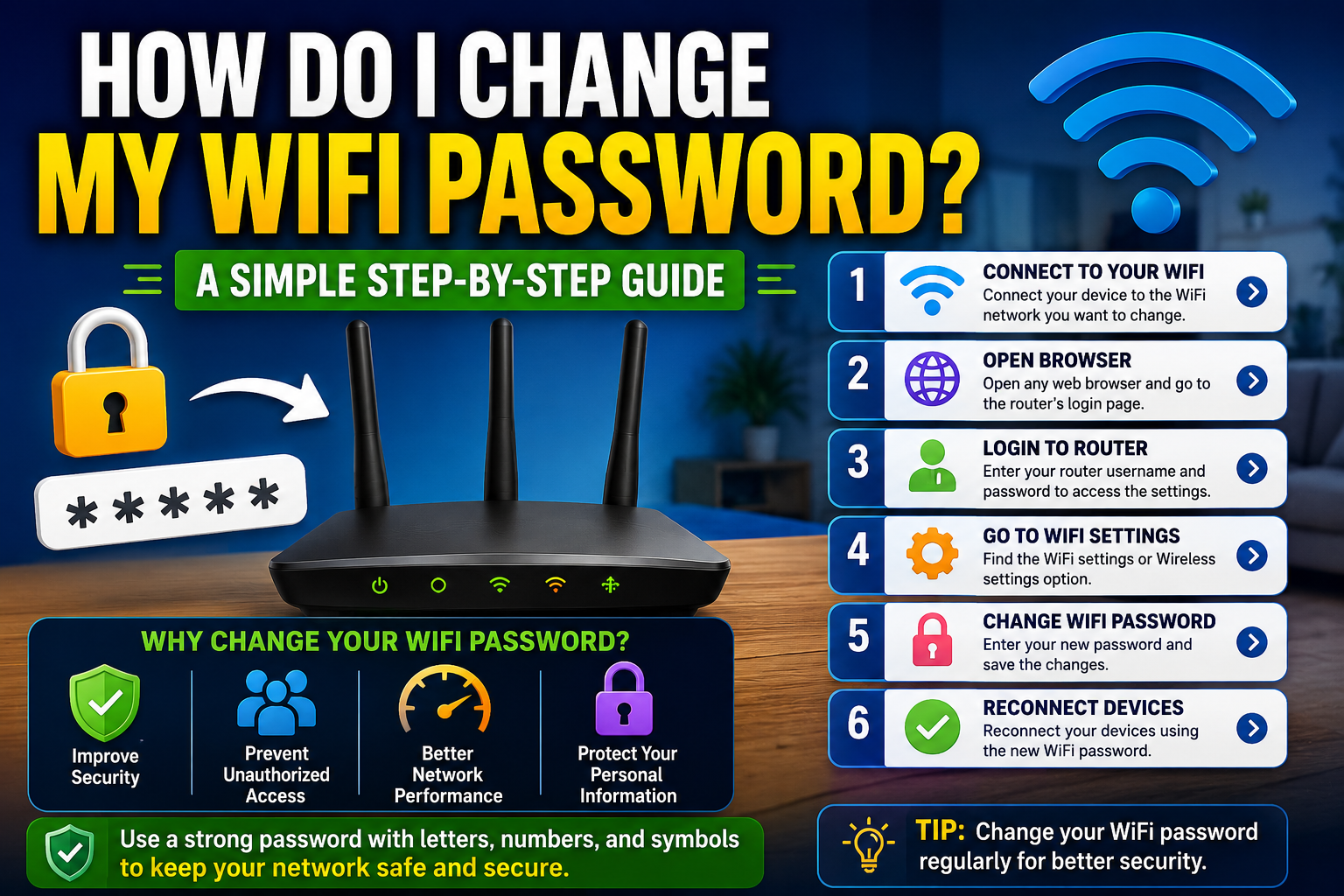
Changing your WiFi password is a good way to keep your internet connection secure. If too many unknown devices are connected to your network, your internet feels slow, or you simply want a new password, you can update it from your router settings.
The process is usually simple. You only need your router, a connected device, and a few minutes.
Why Should You Change Your WiFi Password?
Your WiFi password protects your internet connection from unwanted users. If someone gets access to your WiFi, they can use your bandwidth and may slow down your internet speed.
Changing your password can help you:
- Remove unknown devices from your network
- Improve WiFi security
- Stop neighbours from using your internet
- Protect your personal information
- Control who can access your network
It is a good idea to change your WiFi password every few months, especially if you share it with many people.
How to Change Your WiFi Password
The exact steps can be different depending on your router brand, but the general method is almost the same.
Step 1: Connect Your Device to WiFi
First, connect your phone, laptop, or computer to your WiFi network.
You can change the password only when you are connected to the router.
Step 2: Open Your Router Login Page
Open a web browser and enter your router’s IP address.
Common router login addresses are:
192.168.1.1or
192.168.0.1Press Enter.
You will see a router login page.
Step 3: Login to Your Router
Enter your router username and password.
Common default login details are:
Username: admin
Password: admin
or:
Username: admin
Password: password
Some routers have the login details written on a sticker at the back or bottom of the device.
If you changed the router login password before, use your custom details.
Step 4: Find WiFi Settings
After logging in, look for options like:
- Wireless Settings
- WiFi Settings
- WLAN Settings
- Wireless Security
The name can be different depending on your router brand.
Step 5: Change Your WiFi Password
Find the option called:
- WiFi Password
- WPA Key
- Security Key
- Pre-Shared Key
Delete the old password and enter your new password.
A strong WiFi password should include:
- Uppercase letters
- Lowercase letters
- Numbers
- Special characters
Example:
Home@2026WiFiAvoid using simple passwords like:
12345678
password
yourname123
Step 6: Save Changes
Click:
- Save
- Apply
- Submit
Your router will update the settings.
All connected devices will disconnect automatically because the old password will no longer work.
You will need to reconnect your phones, laptops, and other devices using the new password.
Change My WiFi Password
How to Change WiFi Password on Mobile
Many modern routers also have mobile apps.
For example, some brands provide apps that allow you to:
- Change WiFi password
- See connected devices
- Restart the router
- Manage network settings
Open your router app, go to WiFi settings, change the password, and save.
Change My WiFi Password
How to Change WiFi Password on Different Routers
TP-Link Router
- Open
192.168.0.1or192.168.1.1 - Login
- Go to Wireless
- Select Wireless Security
- Change the password
- Save settings
Huawei Router
- Open the router IP address
- Login
- Go to WLAN Settings
- Select WLAN Basic Configuration
- Change the WiFi password
- Apply changes
ZTE Router
- Login to the router page
- Open Network
- Select WLAN
- Go to Security Settings
- Change the password
- Save
Change My WiFi Password
What Happens After Change My WiFi Password?
After you change your password:
- All connected devices will disconnect
- Old passwords will stop working
- You must reconnect your devices
- Unknown users will lose access
If your phone does not connect after changing the password, simply forget the old WiFi network and connect again.
Change My WiFi Password
Tips for Creating a Strong WiFi Password
A strong password keeps your network safe.
Follow these tips:
- Use at least 10–12 characters
- Avoid personal information
- Do not use common words
- Mix letters, numbers, and symbols
- Create a password that is easy for you to remember
Example:
Weak password:
ali12345Strong password:
Ali@HomeNet2026
Change My WiFi Password
What If I Forget My Router Login Password?
If you forget your router admin password, you have two options.
Option 1: Check the Router Label
Many routers have default login information printed on a sticker.
Option 2: Reset the Router
You can press and hold the reset button on the router for around 10–15 seconds.
Remember, resetting the router will remove all custom settings, including:
- WiFi name
- WiFi password
- Internet settings
You may need to configure the router again.
Change My WiFi Password
Final Thoughts
Changing your WiFi password is a simple but important step to protect your internet connection. Whether you use a TP-Link, Huawei, ZTE, or another router, the process is almost the same: log in to your router, open WiFi settings, update the password, and save changes.Change My WiFi Password
https://nano-networks.com/what-is-a-dual-band-router/