
If your internet is slow, a device is not connecting, or you want to check whether another computer is reachable, the ping command is one of the easiest tools you can use. It is simple enough for a beginner, but it is also very useful for network administrators and IT professionals.
In this guide, you will learn how to ping an IP address on Windows, Linux, and macOS. We will also explain what the results mean, what to do when a ping fails, and how ping can help you find network problems.
Ping an ip address
What Is Ping?
Ping is a network command that checks whether your computer can communicate with another device over a network.
When you run a ping command, your computer sends a small ICMP Echo Request to the destination. If the destination accepts the request and is configured to reply, it sends an ICMP Echo Reply back. The ping command then shows information such as the response time and packet loss.
Ping an ip address
For example, you may want to check a router with this IP address:
192.168.1.1You can simply run:
ping 192.168.1.1If the router replies, you know that your computer can reach it.
Why Do You Need to Ping an IP Address?
There are many reasons to use ping. You do not need to be a networking expert.
Here are some common reasons:
- Check if a router is reachable
- Check if another computer is online
- Test your local network
- Find basic internet connection problems
- Check network delay or latency
- Test a server
- Find packet loss
- Troubleshoot Wi-Fi problems
- Check whether a device is responding
For example, if your Wi-Fi is connected but websites are not opening, you can first ping your router. If the router responds, your local connection may be working, and you can continue testing other parts of the network.
Ping an ip address
How to Ping an IP Address on Windows
Windows makes pinging an IP address very easy. The ping command is available in Windows 10, Windows 11, and supported Windows Server versions.
Step 1: Open Command Prompt
First, open the Command Prompt.
You can do this by:
- Press Windows + R.
- Type
cmd. - Press Enter.
You will see a black Command Prompt window.
Ping an ip address
Step 2: Type the Ping Command
Now type:
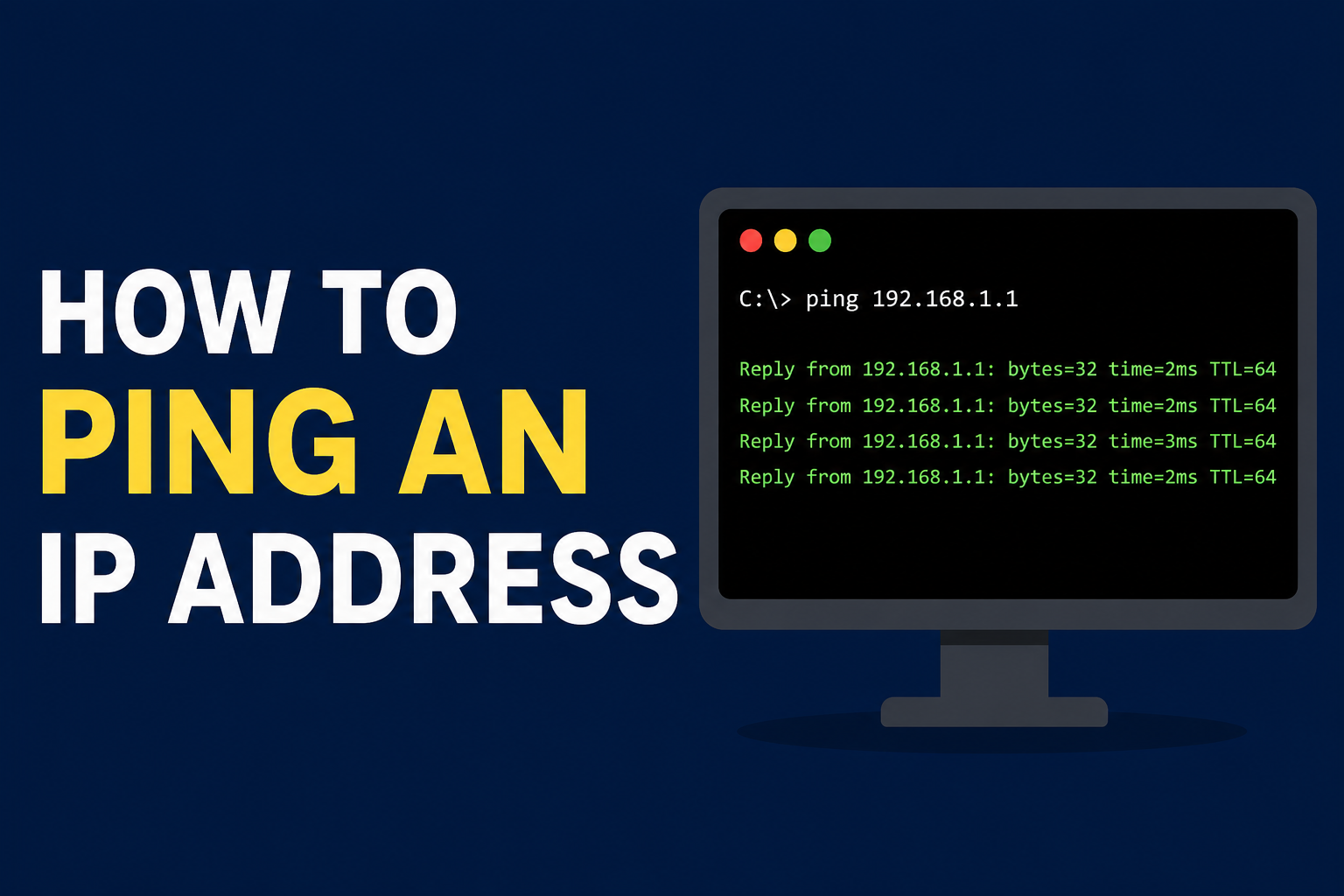
ping 192.168.1.1Replace 192.168.1.1 with the IP address you want to test.
Then press Enter.
You may see something like:
Reply from 192.168.1.1: bytes=32 time=2ms TTL=64
Reply from 192.168.1.1: bytes=32 time=3ms TTL=64
Reply from 192.168.1.1: bytes=32 time=2ms TTL=64
Reply from 192.168.1.1: bytes=32 time=3ms TTL=64
This means the device is responding to your ping requests.
By default, Windows sends four echo requests when you use the basic ping command.
How to Understand Ping Results
The results may look confusing at first, but they are actually easy to understand.
Reply From
When you see:
Reply from 192.168.1.1it means the destination sent a response back to your computer.
This is generally a good sign.
Bytes
You may see:
bytes=32This shows the size of the data sent in the basic Windows ping request.
Time
You may see:
time=2msThis is the approximate round-trip time for the request and response.
A lower number generally means a faster response.
For example:
time=2msis usually much faster than:
time=150msHowever, the meaning of a “good” ping time depends on what you are testing and where the destination is located.
TTL
You may also see:
TTL=64TTL means Time To Live. It is a value in the IP packet that helps prevent packets from travelling around a network forever.
For a beginner, you normally do not need to worry about the TTL number when doing a basic connectivity test.
Ping an ip address
How to Ping Your Router
One of the best first tests when troubleshooting your internet is to ping your router or default gateway.
On Windows, type:
ipconfigLook for Default Gateway.
For example, you might see:
Default Gateway . . . . . : 192.168.1.1Then run:
ping 192.168.1.1Microsoft also recommends checking the local IP configuration and using ping to test connectivity to a gateway or DNS server during network troubleshooting.
If the router responds, your computer can communicate with the router.
If it does not respond, you may have a problem with your Wi-Fi connection, network cable, router, IP configuration, or firewall.
Ping an ip address
How to Ping an IP Address Continuously
Sometimes four ping requests are not enough. You may want to watch the connection for a longer time.
Windows provides the /t option:
ping 192.168.1.1 /tThis keeps sending ping requests until you stop it.
To stop the test, press:
Ctrl + CMicrosoft documents /t as the option for continuously sending echo requests until interrupted.
This can be useful when you think your internet connection randomly disconnects.
For example, you can start the test and watch the results:
Reply from 192.168.1.1: time=2ms
Reply from 192.168.1.1: time=3ms
Reply from 192.168.1.1: time=2ms
Request timed out.
Reply from 192.168.1.1: time=4ms
The timeout may indicate a temporary connectivity problem, although one timeout alone does not always mean your internet connection is broken.
How to Ping a Specific Number of Times
Windows also lets you choose how many ping requests to send.
For example:
ping 192.168.1.1 /n 10This sends 10 requests instead of the default four.
This is useful when you want a slightly larger sample for checking packet loss and response times.
Ping an ip address
What Does “Request Timed Out” Mean?
Sometimes you will see:
Request timed out.This means your computer did not receive an ICMP reply within the timeout period.
There can be several reasons.
The destination device may be:
- Turned off
- Disconnected from the network
- Blocking ICMP traffic
- Behind a firewall
- Temporarily unavailable
- Using a different network path
A timeout does not always mean the device is offline. Some servers and network devices deliberately block ping requests.
Microsoft notes that ICMP traffic must be allowed through the firewall for ping to work.
Ping an ip address
What Does “Destination Host Unreachable” Mean?
Another message you may see is:
Destination host unreachable.This usually means your computer or another network device cannot find a working path to the destination.
If you are testing a device on your local network, check:
- Your network connection.
- Your IP address.
- Your subnet mask.
- Your default gateway.
- The destination device.
- Network cables or Wi-Fi.
You can check your Windows network settings with:
ipconfig
Ping an ip address
How to Ping an IP Address on Linux
Linux also has a simple ping command.
Open your Terminal and type:
ping 192.168.1.1Press Enter.
Linux systems commonly continue sending ping requests until you stop the command. Press:
Ctrl + Cto stop it.
The Linux ping utility sends ICMP Echo Requests and works with both IPv4 and IPv6.
You can also specify the number of requests. For example:
ping -c 4 192.168.1.1This sends four requests and then stops.
How to Ping an IP Address on macOS
On macOS, you can also use the Terminal.
Open Terminal and type:
ping 192.168.1.1The Mac will begin sending ping requests.
Press:
Ctrl + Cwhen you want to stop.
You can also specify a number of requests with:
ping -c 4 192.168.1.1The basic idea is the same across Windows, Linux, and macOS: provide the ping command followed by the destination IP address.
How to Check Your Own IP Address
Before troubleshooting a network, it can be helpful to know your computer’s IP address.
On Windows, open Command Prompt and run:
ipconfigYou will see information such as:
IPv4 Address
Subnet Mask
Default Gateway
For example:
IPv4 Address . . . . . : 192.168.1.10
Default Gateway . . . : 192.168.1.1
You can then test your gateway:
ping 192.168.1.1If the gateway responds, your computer is communicating with the local router.
A Simple Network Troubleshooting Method
Ping becomes much more useful when you test your network step by step.
Start by testing your own computer:
ping 127.0.0.1This is called the loopback address.
Next, ping your router:
ping 192.168.1.1Use your actual gateway address if it is different.
Then, try pinging another known IP address that you are allowed to test.
This step-by-step method can help you understand where the connection problem starts.
For example:
Step 1: Your computer responds to 127.0.0.1.
Step 2: Your router responds.
Step 3: A remote IP responds.
This suggests that the basic network path is working.
If your router does not respond, focus on your local network first.
Ping an IP Address vs Ping a Website
You can ping both an IP address and a hostname.
For example:
ping 8.8.8.8or:
ping example.comWhen you ping a hostname, your computer must first resolve the name to an IP address.
This can help identify DNS problems. Microsoft explains that if an IP address can be pinged successfully but the computer name cannot, name resolution may be the problem.
So, testing both can be useful:
ping 8.8.8.8
ping example.com
Does Ping Show Internet Speed?
No. Ping is not an internet speed test.
Ping mainly tells you whether a destination responds and how long the round trip takes.
It does not tell you your full download or upload speed.
For example, you can have a fast 100 Mbps connection and still experience high latency to a particular server.
Likewise, a low ping time does not automatically mean your internet connection has high bandwidth.
Final Thoughts
Learning how to ping an IP address is one of the easiest ways to start troubleshooting a network. The basic command is very simple:
ping IP_ADDRESSFor example:
ping 192.168.1.1On Windows, you can use /t for a continuous test or /n to choose the number of requests. On Linux and macOS, options such as -c can be used to control the number of requests.
Remember that a successful ping means the destination responded to an ICMP request. A failed ping does not always mean the device is offline because firewalls and network settings can block ICMP traffic.
Once you understand Reply, time, packet loss, timeout, and unreachable messages, ping becomes a very useful tool for finding basic network problems. It is simple, fast, and available on almost every modern operating system.
Shop Tenisdc Clothes